
Design a Standout Logo in Photoshop
Creating a standout logo is an essential part of establishing a brand identity. A logo is often the first impression a potential customer has of your business, so it’s crucial to make it memorable and reflective of your brand’s values. In this blog post, we’ll walk you through 11 simple steps to design a logo in Photoshop that not only stands out but also resonates with your audience.
Step 1: Define Your Brand Identity
Before you even open Photoshop, take some time to define your brand identity. What are your brand values? Who is your target audience? What emotions do you want your logo to evoke? Having a clear understanding of your brand will guide your design choices.
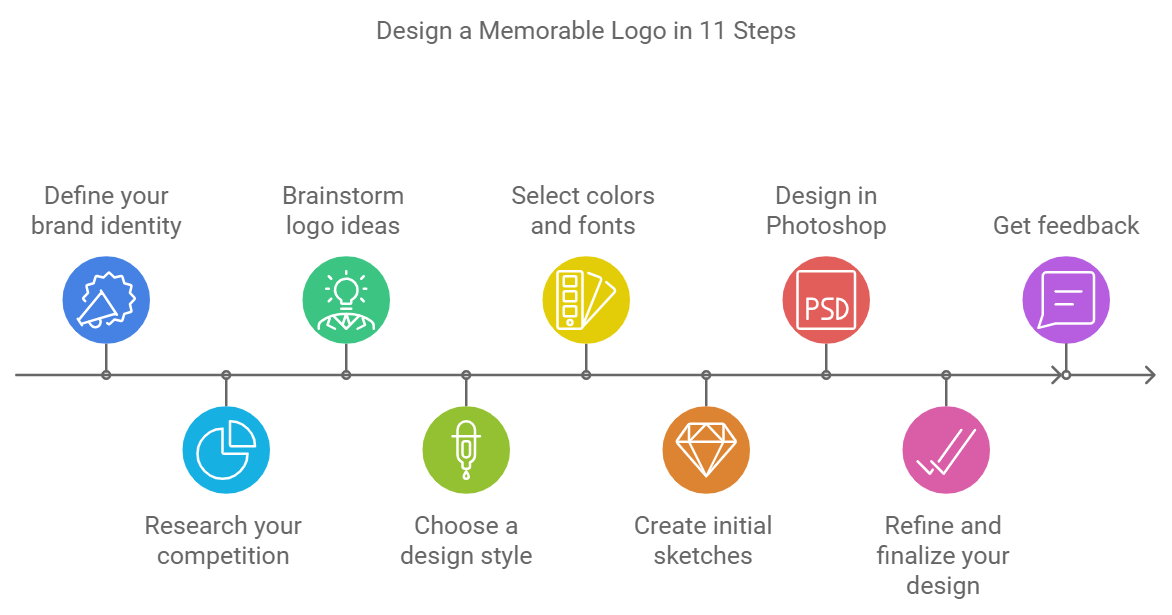
Step 2: Research and Gather Inspiration
Look for inspiration from other logos in your industry and beyond. Explore design websites, social media platforms, and even nature for ideas. Create a mood board with colors, shapes, and styles that resonate with your brand identity.
Step 3: Choose Your Logo Type
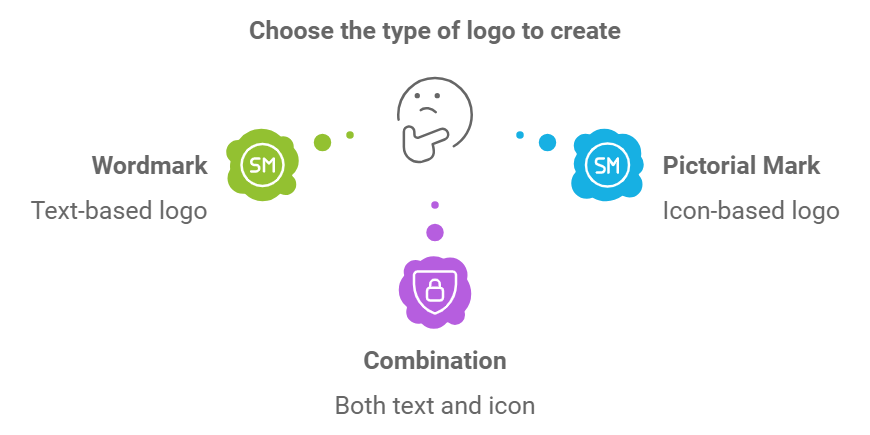
Decide on the type of logo you want to create. Will it be a wordmark (text-based), a pictorial mark (icon-based), or a combination of both? Understanding the different types of logos will help you choose the right direction for your design.
Step 4: Sketch Your Ideas
Grab a pencil and paper and start sketching your ideas. Don’t worry about perfection; this is just a brainstorming phase. Sketch multiple concepts and variations to explore different possibilities.
Step 5: Open Photoshop and Set Up Your Document
Once you have a few sketches you like, open Photoshop and create a new document. Set your canvas size to a square format, as logos are often displayed in a square or circular shape. A resolution of 300 DPI is ideal for print quality.
Step 6: Create Basic Shapes
Using the shape tools in Photoshop, start creating the basic shapes that will form your logo. Don’t be afraid to experiment with different shapes and layouts. This is where your sketches come to life.
Step 7: Choose Your Color Palette
Select a color palette that aligns with your brand identity. Use the Color Picker tool to experiment with different color combinations. Remember that colors evoke emotions, so choose wisely!
Step 8: Add Typography
If your logo includes text, choose a font that complements your design. Consider customizing the font to make it unique. Play with size, spacing, and alignment to achieve a balanced look.
Step 9: Refine Your Design
Take a step back and evaluate your logo. Make necessary adjustments to shapes, colors, and typography. Ensure that your logo is scalable and looks good in both small and large sizes.
Step 10: Get Feedback
Share your logo design with friends, family, or colleagues to gather feedback. Constructive criticism can help you identify areas for improvement and ensure your logo resonates with others.
Step 11: Save and Export Your Logo
Once you’re satisfied with your design, save your logo in multiple formats (such as PNG, JPEG, and SVG) for different uses. Make sure to keep a high-resolution version for print and a transparent background version for web use.
Conclusion
Designing a standout logo in Photoshop doesn’t have to be a daunting task. By following these 11 simple steps, you can create a logo that not only captures the essence of your brand but also leaves a lasting impression on your audience. Remember, your logo is a visual representation of your brand, so take the time to make it truly reflect who you are. Happy designing!
Nice Tutorial